~~ PXVOID ~~
** A FEDERATED WEB GALLERY **
The terminal is great, but sometimes you just want to look at pictures online. Images can convey all sorts of emotions and are an important medium on the internet. Some time ago, I tried to build pixelfed on my NixOS infrastructure so I’d have a way to upload images. Unfortunately, it only ever worked up to a certain point, and the end result wasn’t satisfactory. That’s why pxvoid has now been released.

PXVOID - BACK TO WEB GALLERIES
Even though I spend a lot of time in the terminal here, graphics and images are an important medium. Images can be anything from code, hardware, pixel art, photography, designs, renders, and much, much more. As mentioned above, my attempts with Pixelfed weren’t successful, and the idea has been gathering dust for a long time. But somehow I need a way to easily share images online, outside of the blog. The icing on the cake would be the ability for others to easily follow the gallery and receive updates. RSS would be the simple option, or you could use a federation—which is what I’ve done.
pxvoid (the name is a blend of pixel and void) is a web gallery where you can follow users with your Mastodon account. By doing so, you’ll receive all newly uploaded images from the gallery directly in your feed, ensuring you never miss a thing. It’s essentially like Pixelfed, but without all the full multi-user instance features and photo filters.
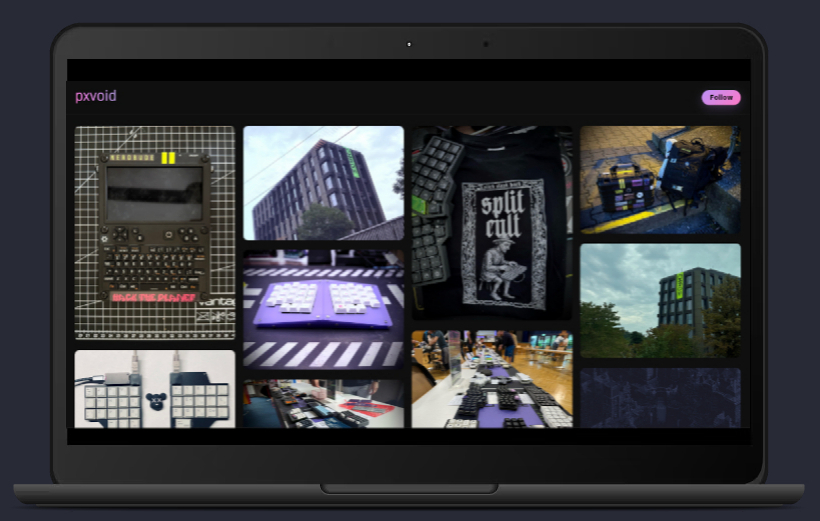
VERSION 0.1
pxvoid is available as a beta version on Codeberg and can be tested. The beta is functional, meaning all basic functions should work for you as well:
- Upload and delete images
- Other creatures can follow the gallery
- Likes via Mastodon are displayed in the gallery
- New uploads are displayed in the timeline
But there are also a number of features that are still waiting to be implemented. For example:
- Lazy loading of images
- Configuration via config file (username, profile picture, etc.)
- Alt text for images
- Number of followers
- Upload interface
- Design elements
- Testing on different operating systems
pxvoid is purely a hobby project, and I’m anything but a professional developer. Therefore, the code is certainly not perfect; there will be things that could be solved more elegantly or that could improve pxvoid’s performance. But this is just the beginning of the journey.
INSTALLATION
pxvoid is currently only tested on NixOS, simply because that’s the operating system I work on. If you test pxvoid on other systems, please let me know if everything works smoothly.
I can provide the instructions for NixOS here. The prototype of pxvoid is already running on NixOS with all its features. Here’s how to install pxvoid on a NixOS server.
Within NixOS it is easy to build a working pxvoid gallery. We just create a .nix file with all the configuration stuff, create some folders, set the permissions and start pxvoid as a service within your configuration.nix. After the rebuild everything will work like a charm.
- CREATE PROJECT DIRECTORY It’s best to create a separate directory for pxvoid so you have full control over where your files are located. This makes debugging much easier later on.
1mkdir -p /srv/pxvoid/{app,media/photos,keys,db}
- CLONE PXVOID In the next step, we retrieve the pxvoid code from Codeberg and clone it into our newly created directory.
1cd /srv/pxvoid/app
2git clone https://codeberg.org/0x17/pxvoid.git .
- GENERATE ACTIVITYPUB KEY To ensure your pxvoid instance is properly federated, it needs two keys: a private.pem and a public.pem. We create these with the following commands:
1cd /srv/pxvoid/keys
2openssl genrsa -out private.pem 2048
3openssl rsa -in private.pem -pubout -out public.pem
4chmod 600 private.pem
5chmod 644 public.pem
- CREATE ENVIRONMENT FILE We create the .env file with the following content
1vim /srv/pxvoid/app/.env
1PXVOID_BASE_URL=https://your-domain.tld
2PXVOID_TOKEN=SUPERSAFETOKEN
3ZEROFRAME_DB=/srv/pxvoid/db/gallery.db
Then we assign the appropriate access rights to the .env file.
1chmod 600 /srv/pxvoid/app/.env
- THE NIX FILE In the next step, we create the basic nix file which configures the starting of the service, virtual host, Python packages, and everything else:
  1{ config, lib, pkgs, ... }:
  2
  3let
  4  cfg = config.services.pxvoid;
  5
  6  pxvoidPython = pkgs.python312.withPackages (ps: with ps; [
  7    fastapi
  8    httpx
  9    uvicorn
 10    jinja2
 11    python-multipart
 12    cryptography
 13    requests
 14    pillow
 15  ]);
 16in
 17{
 18  options.services.pxvoid = {
 19    enable = lib.mkEnableOption "pxvoid service";
 20
 21    domain = lib.mkOption {
 22      type = lib.types.str;
 23      example = "pxvoid.example.org";
 24      description = "Public domain for pxvoid nginx virtual host.";
 25    };
 26
 27    appDir = lib.mkOption {
 28      type = lib.types.str;
 29      default = "/srv/pxvoid/app";
 30      description = "Path to pxvoid git checkout.";
 31    };
 32
 33    envFile = lib.mkOption {
 34      type = lib.types.str;
 35      default = "/srv/pxvoid/app/.env";
 36      description = "Environment file loaded by systemd (PXVOID_BASE_URL, PXVOID_TOKEN, ZEROFRAME_DB).";
 37    };
 38
 39    user = lib.mkOption {
 40      type = lib.types.str;
 41      default = "pxvoid";
 42      description = "System user running pxvoid.";
 43    };
 44
 45    group = lib.mkOption {
 46      type = lib.types.str;
 47      default = "pxvoid";
 48      description = "System group running pxvoid.";
 49    };
 50
 51    mediaDir = lib.mkOption {
 52      type = lib.types.str;
 53      default = "/srv/pxvoid/media";
 54      description = "Base media directory (photos in media/photos).";
 55    };
 56
 57    dbDir = lib.mkOption {
 58      type = lib.types.str;
 59      default = "/srv/pxvoid/db";
 60      description = "Directory that stores gallery.db.";
 61    };
 62
 63    keyDir = lib.mkOption {
 64      type = lib.types.str;
 65      default = "/srv/pxvoid/keys";
 66      description = "Directory for ActivityPub private.pem/public.pem.";
 67    };
 68
 69    acmeEmail = lib.mkOption {
 70      type = lib.types.str;
 71      default = "admin@example.org";
 72      description = "Email for ACME certificate registration.";
 73    };
 74  };
 75
 76  config = lib.mkIf cfg.enable {
 77    users.users.${cfg.user} = {
 78      isSystemUser = true;
 79      group = cfg.group;
 80      home = "/srv/pxvoid";
 81      createHome = false;
 82    };
 83    users.groups.${cfg.group} = {};
 84
 85    systemd.tmpfiles.rules = [
 86      "d ${cfg.mediaDir} 0750 ${cfg.user} ${cfg.group} -"
 87      "d ${cfg.mediaDir}/photos 0750 ${cfg.user} ${cfg.group} -"
 88      "d ${cfg.dbDir} 0750 ${cfg.user} ${cfg.group} -"
 89      "d ${cfg.keyDir} 0750 ${cfg.user} ${cfg.group} -"
 90    ];
 91
 92    systemd.services.pxvoid = {
 93      description = "pxvoid FastAPI service";
 94      after = [ "network.target" ];
 95      wantedBy = [ "multi-user.target" ];
 96
 97      serviceConfig = {
 98        Type = "simple";
 99        User = cfg.user;
100        Group = cfg.group;
101        WorkingDirectory = cfg.appDir;
102        EnvironmentFile = cfg.envFile;
103        Environment = [ "PYTHONPATH=${cfg.appDir}" ];
104        ExecStart = "${pxvoidPython}/bin/uvicorn --app-dir ${cfg.appDir} app.main:app --host 127.0.0.1 --port 8000";
105        Restart = "always";
106        RestartSec = "3";
107      };
108    };
109
110    services.nginx.enable = true;
111    services.nginx.recommendedProxySettings = true;
112
113    services.nginx.virtualHosts.${cfg.domain} = {
114      forceSSL = true;
115      enableACME = true;
116      locations."/" = {
117        proxyPass = "http://127.0.0.1:8000";
118        extraConfig = ''
119          client_max_body_size 25M;
120        '';
121      };
122    };
123
124    security.acme = {
125      acceptTerms = true;
126      defaults.email = cfg.acmeEmail;
127    };
128  };
129}
In the first part of the file, we declare the option that we will later import into our configuration.nix, and in the second section, we set the parameters for the actual pxvoid configuration. The file now needs to be imported and made available. Therefore, two more entries are added to the central configuration.nix:
1in {
2	imports = [
3		./path/to/pxvoid.nix
4	];
And we start the service itself as follows:
1services.pxvoid = {
2	enable = true;
3	domain = "pxvoid.your-domain.tld";
4	appDir = "/srv/pxvoid/";
5	envFile = "/srv/pxvoid/app/.env";
6	acmeEmail = "mail@your-domain.tld"
- PERMISSIONS AND REBUILD If we now perform a rebuild, it might complete without problems, but pxvoid won’t start. The problem here is that the user isn’t yet assigned to our app directory. Therefore, we’ll now assign the correct permissions and then rebuild the system:
1chown -R pxvoid:pxvoid /srv/pxvoid/media /srv/pxvoid/db /srv/pxvoid/keys
2chmod 750 /srv/pxvoid/media /srv/pxvoid/media/photos /srv/pxvoid/db /srv/pxvoid/keys
and the rebuild:
1nixos-rebuild switch
You should now own a working pxvoid instance.
USAGE
Currently, pxvoid can only be used via the command line. You can find pxvoid.py in the repository folder /tools/.
- CREATE A VENV
On NixOS you either create a virtual environment and then install requests via
pip install:
1python3 -m venv pxvoid
2source pxvoid/bin/activate
3pip install requests
or via nix-shell (you can find shell.nix in the pxvoid repository under /tools/shell.nix):
 1{pkgs ? import <nixpkg> {} }:
 2
 3pkgs.mkShell {
 4    packages = [
 5        (pkgs.python3.withPackages (ps: with ps; [
 6            requests
 7            pip
 8        ]))
 9    ];
10}
We also need to export the shell variables:
1export PXVOID_TOKEN='yoursupersafeuploadtoken'
2export PXVOID_BASE_URL=https://pxvoid.your-domain.tld
after that you can simply start the shell via nix-shell and use the tool directly.
- Upload pictures
To upload pictures you can use the following command:
1python pxvoid.py upload /path/to/picture.jpg --tags building,art,blackwhite
If everything works, you will receive a meesage that the image was successfully uploaded.
- Delete pictures If you want to delete pictures from your pxvoid gallery you can use the same tool with the delete flag:
1python pxvoid.py delete 12
The id is the picture id given by pxvoid. Go to your gallery open the picture you want to delete and you will find the id in the url.
CONCLUSION
Yes, pxvoid isn’t exactly user-friendly, but it fills a gap for me: I need a way to share images online without using my actual Mastodon account. Plus, all my images are in one central location and can be viewed all at once, so nobody has to scroll through the entire feed. Even though some features are still missing, pxvoid is already quite usable. Maybe someone else will find it fun and useful.
HAPPY HACKING!
[~] BACK