~~ HELIX ~~
** GOODBYE NVIM - HELLO HELIX **
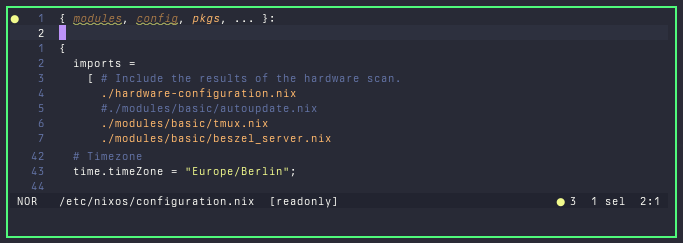
A long time ago, various people were already championing helix as a superior editor. Back then, it didn’t really win me over. Times change, and so does the perspective on helix.
0x01 STATUS QUO
I was a long-time Vim user. On the one hand, this was due to the “hack value” the editor offers, but also because of its keyboard-centric approach, the ability to map almost every function to keybindings, and its immense extensibility thanks to powerful plugin systems. I used Vim for a wide range of tasks: coding, writing config files and blog posts, drafting Git commit messages, composing emails via aerc, and pretty much anything else involving text input. Naturally, this makes Vim very powerful, but it also increases maintenance complexity and causes the number of plugin files to balloon quickly. At some point, helix appeared on my radar; although it didn’t initially seem like an improvement over Vim during my first test, its distinct approach and goals make it well worth a second look. I simply want an editor that comes with everything needed for the aforementioned tasks right out of the box.
0x02 NVIM VS. HELIX
Let’s start with the features both editors share. The most important aspect is modality. We aren’t dealing with tools that operate on a single level and attempt to cram every function into that one space. I find the concept of modality far more agreeable than other interaction models. It allows different functions to be assigned to specific levels or modes. This reduces the strain on both the brain and the fingers while typing—an ergonomic advantage that is undeniable. In terms of actual operation via shortcuts, the two are similar enough that this counts as a plus.
Both editors can function as IDEs, offering syntax highlighting, LSP integration, and code autocompletion. However, there are subtle areas where helix comes out ahead. With Neovim, you often need a specific plugin to handle a particular task. That plugin then has to be properly integrated into your chosen plugin manager. While usually not an issue, problems can arise if the integration changes or if plugins become unmaintained. helix includes these features out of the box—no extra configuration or searching for the right plugins required.
Another plus for helix is its multi-cursor support—or multi-selection feature. With Neovim, you can add this feature via a plugin (as is often the case), whereas in helix it is built-in from the start and feels more polished. I’ll go into more detail about the multi-cursor feature later.
When it comes to resource consumption, NVim (without plugins) performs significantly better than helix. But then again, who actually uses NVim without plugins? Once you dip your toe into the vast ocean of available plugins, the NVim installation quickly balloons to several times the size of helix. helix also beats NVim in terms of actual RAM usage—though these are just benchmark figures that depend heavily on how the editor is actually used.
It’s not hard to gather from the NERDBUDE context that there’s a 99.9% chance the machines here are running NixOS. The configuration of the two editors couldn’t be more different—at least in my case. As I’ve mentioned before, I originally configured NVim using NixVim. The beauty of this approach is that you can configure NVim in a completely declarative and reproducible way using NixOS modules. With helix, however, I hit a bit of a wall. In principle, helix can only be configured to that extent via Home-Manager. At the time of the switch, I wasn’t using Home-Manager, flakes, or any other NixOS systems management tools. Consequently, I began migrating my systems directly to a Colmena infrastructure (including sops-nix, flakes, and Home-Manager)—but more on that in a separate post (which is currently in the works). Since many people already rely on Home-Manager, this likely represents a hurdle specific to my own situation.
I think that covers the broad similarities and differences between NVim and helix. So, it’s time to take a closer look at helix.
0x03 INSTALLATION
Installation on NixOS is straightforward, as usual. There are three ways to install helix. If you only want to test helix temporarily, a simple command suffices:
1nix-shell -p helix
After that, helix disappears again as soon as you exit the shell.
You can make this persistent in your configuration.nix:
1environment.systemPackages = with pkgs; [
2  helix
3];
Then, NixOS incorporates helix into your toolset. The third option, as previously mentioned, is to integrate helix via Home Manager:
 1{
 2  programs.helix = {
 3    enable = true;
 4    defaultEditor = true;
 5
 6    settings = {
 7      theme = "dracula";
 8    };
 9  };
10}
This automatically generates the appropriate ~/.config/helix/config.toml for your chosen Home Manager user.
For everyone out there not using NixOS, this is also the configuration file you need to configure helix.
Once you have decided on an installation method, launch helix using the following command:
$> hx
And then nothing stands in the way of a deep dive into your new default editor.
0x04 USAGE
Let’s assume you aren’t coming from (N)Vim or similar derivatives yet and have no idea how it all works. For one thing, I previously ran a Vim series on this blog (Part 1) where you can learn the basics and a bit more; and secondly, I’m starting with the basics here as well. If you’re already used to NVim or the like, none of this will come as a surprise to you.
Let’s start with the structure of the individual modes in helix.
NORMAL MODE: This is where helix starts, and the cursor moves through the file. Unlike in NVim, the cursor here is already a selection. This is another key difference from NVim. helix is always based on selections, and editing proceeds from there. As with NVim, you can always switch back to this mode by pressing Esc.
INSERT MODE: Much like in NVim, you enter this mode by pressing “i”. Here, you simply enter text. The only slight difference lies in how you switch to INSERT mode:
1i - Insert text before the selection
2a - Insert text after the selection.
3o - new line below
4O - new line above
SELECT MODE Since helix places more emphasis on selection than Neovim, this mode is also very important. SELECT mode is activated by pressing “v” and is similar to Visual mode in Neovim. Here, you use all the commands and shortcuts dedicated to selecting blocks, characters, sentences, and so on. For example, the sequence “v w w d” allows you to immediately delete the two words under the cursor. More details on the individual keys follow below.
In addition to the actual main modes, there are also sub-modes. These sub-modes are likewise activated by individual keys but apply only to the character that follows. They function essentially as one-shot modifiers. For example, pressing “g” enters Goto Mode, which opens up the following combination options:
1gg - to the beginning of the file
2ge - to the end of the file
3gd - to definition
4gr - to reference
Another sub-mode is Match Mode.
This is used, for example, for working with parentheses; for instance, you can toggle between ( and ) using “m-m”.
By default, window/split management is controlled via Ctrl + w. This is Window Mode.
This results in the following options:
1Ctrl + w v - vertical split
2Ctrl + w h - move to left window
Much like SpaceVim, helix features a Space Mode.
This mode is activated by pressing space and displays a menu of all available options, which can then be selected using specific keys.
1SPC f - open file
2SPC / - open search within project
Just like in NVim, there is a Command Mode. It is activated using :, also just like in NVim.
Commands such as q or wq work here.
Finally, there is the View Mode. View Mode allows you to change the view without altering the actual content.
In this regard, too, helix is on par with all Vim derivatives.
That covers the basics of using helix. Things get interesting when you start using specific keybindings; that is the only way to significantly increase your speed when using modal editors.
0x05 KEYBINDINGS
Things get really exciting when you use helix with keybindings specifically designed for its selection-focused operating model. So, let’s dive into the depths of helix keybindings.
The standard hjkl system is present in helix too, so there is no need to adjust to a new layout in that regard.
If you aren’t currently making a selection but still want to switch to Insert Mode, there are several ways to do so:
1i - insert
2I - insert at beginning of line
3a - append
4A - append end of line
We can also add whole lines:
1o - new line under cursor
2O - new line above cursor
As previously mentioned, the distinctive feature of helix is its focus on selections. This means that the foundation of all operations lies in selecting the area to be edited. There are various ways to select elements (all within Insert Mode):
1w - select word under cursor
2e - select until end of next word
3b - selects up to the beginning of the previous word
4x - select whole line
This results in possibilities for combinations, just as with NVim:
12w - select the word after the next one
25w - select the fifth-nearest word
32x - select two lines
45x - select five lines
5eb - selects only the word under the cursor
helix can also recognize word blocks. Let’s assume we have an element like {test} or just test in our code.
If we navigate through this block using w, it takes three keystrokes to get past it.
However, if we use W instead, helix recognizes the block and selects it in its entirety.
Thanks to the editor’s modes, we can—as mentioned above—select the word after the next one using 2w in Insert Mode.
However, if we use Visual mode and 2w instead, we can highlight the first two words starting from the cursor and edit them further.
You can also select multiple words regardless of their position.
For instance, we can mark lines using x or 3x and then switch to the selection command using s.
Everything we enter here and confirm by pressing Enter will be included in our selection.
The absolute killer feature of helix is its built-in multi-cursor support. For instance, this allows you to easily modify variables across an entire file or selection simultaneously, without having to change each one manually.
15x - select five lines
2s  - Start 'select: mode': enter the variable here and confirm by pressing Enter.
3d  - delete selected text
4i  - We enter insert mode and can overwrite all selections.
5,  - ends the multi-cursor selection
With its multi-cursor feature, helix offers a powerful, natively integrated feature that is definitely worth using.
0x06 FAZIT
If you are already used to NVim and reasonably familiar with how it works, switching to helix is very easy. Moreover, helix comes with everything you need to work effectively and productively right out of the box. This keeps resource usage in check and avoids the pitfalls of a massive plugin system that eventually becomes cluttered and hard to maintain. Compared to the veteran (N)Vim, helix is still in its infancy, yet it holds its own in every respect. This will likely be my default editor for the foreseeable future.
Happy Hacking!
[~] BACK